Entering the Teacher’s Notebook, restricting the list of processed students
- 1.How do I select a course in the Teacher’s Notebook?
When entering the teacher application (Teacher’s Notebook), it is necessary to specify the course(s) the teacher wants to work with:
Information System TeacherThe system offers courses that the teacher teaches in the given semester, as well as courses for which the Course Catalogue specifies that grades are entered by all instructors (joint projects, thesis supervision, etc.). Users with the access right s_vyuka can also select additional courses of their department.
On the course selection page, always check the currently set faculty and period at the top.
To work with the selection of students in a course or seminar group, the teacher can click the arrow next to the course or seminar group name.
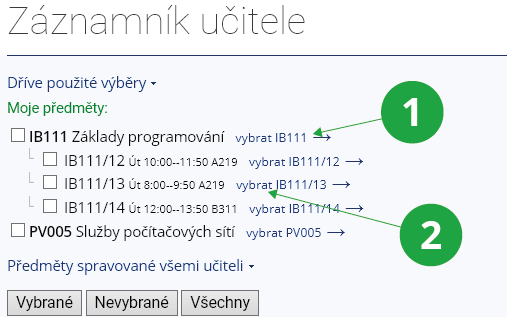
1 Arrow for selecting active students of the course.
2 Arrow for selecting active students of the seminar group.
In applications that allow it, a teacher can select multiple courses simultaneously by ticking them on the selection page. The application will then work with a merged list of students from all selected courses, according to the current phase of the semester.
On every page of the Teacher’s Notebook, a panel is available showing an overview of the selected courses, including the current semester phase:
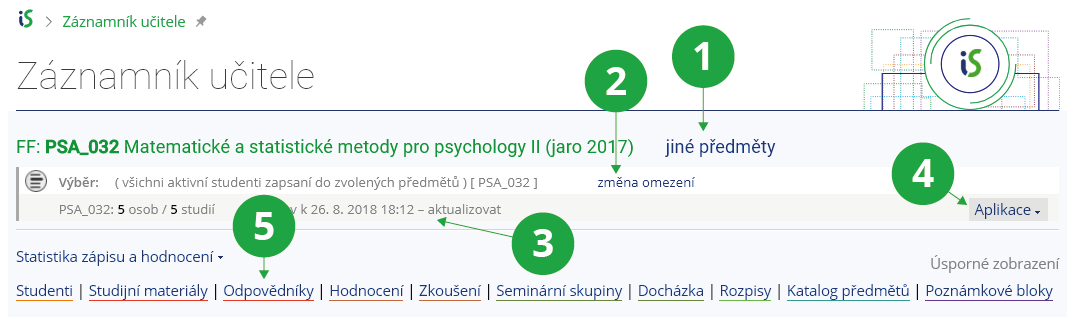
1 Button for selecting a different course.
2 Button for changing selection restrictions or adding another course to the selection.
3 The semester phase in which the course is currently located.
4 Overview of the most frequently used applications.
5 Quick navigation to the application dashboard on the page.
Students are naturally selected by the system according to the semester phase defined by the academic year schedule. The individual phases are:
- “registration in progress” (active registered and active enrolled students) – registration period,
- “teaching in progress” (active enrolled students) – enrolment and enrolment change period, teaching period, and the examination period plus two months,
- “teaching completed” (active, completed, and inactive enrolled students) – two months after the end of the examination period.
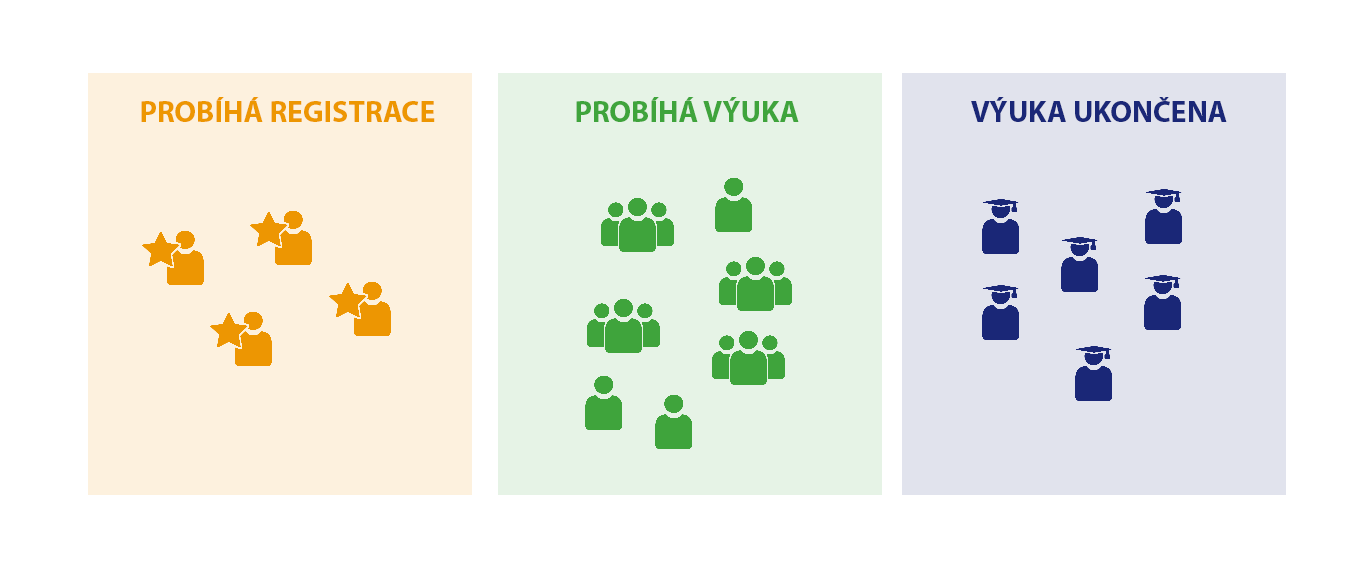
1 Students are automatically selected by the system according to the semester phase defined by the academic calendar.
- 2.I teach one course under multiple codes. Can I work with all of them at once?
Yes. You can manage one course under multiple codes by adding it to the selection under all relevant codes. For the selected courses, you can then perform certain operations jointly, such as creating examination dates, entering assessments, generating statistics, and similar actions:
Information System Teacher [selected courses] Selected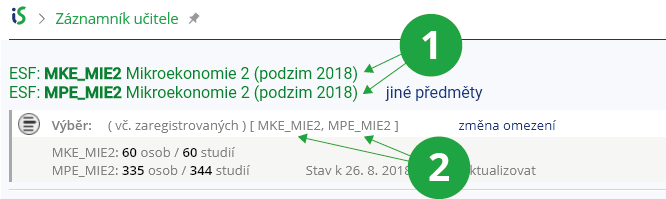
1 Overview of selected courses.
2 Students are selected according to the semester phase.
- 3.How do I restrict the list of students I want to work with?
A teacher can restrict the list of students, for example, to students registered for a specific examination date, limit the list to a selected seminar group, or to students repeating the course, etc. The selected group of students can then be used, for example, to send a e-mail. The teacher defines restrictions in the Teacher agenda:
Information System Teacher [selected restrictions and course(s)] Select restrictionsRestrictions are set by first ticking the desired course or courses at the top of the page, then selecting the required restriction or restrictions at the bottom, and only then clicking the selection button next to the checked course. It is assumed that restrictions are selected less frequently than working without restrictions.
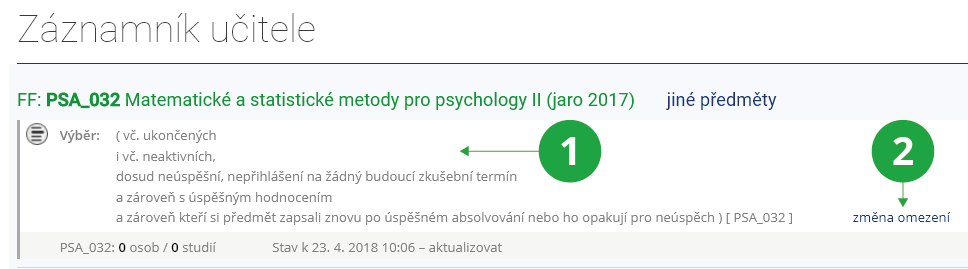
1 Display of current restrictions.
2 Link to modify restrictions.
Students are naturally selected by the system according to the semester phase defined by the academic year schedule. The individual phases are:
- “registration in progress” (active registered and active enrolled students) – registration period,
- “teaching in progress” (active enrolled students) – this phase includes the enrolment and enrolment change period, the teaching period, and the examination period plus two months,
- “teaching completed” (active, completed, and inactive enrolled students) – two months after the end of the examination period.
In saved selections, the set of students therefore changes when the semester phase changes according to the academic calendar.
Any number of restrictions can be applied simultaneously. For example, if you select both “restrict selection to students repeating the course as a result of failing to complete it” and “restrict selection to students who have failed to complete the course”, you will obtain a likely list of candidates for unsuccessful completion of studies. When applying multiple restrictions, you can choose the AND operator (all conditions must be met, default option) or the OR operator (at least one condition must be met).
- 4.Can I return to my previous selections of students and courses?
Yes. A teacher can find previous selections in the Teacher agenda:
Information System Teacher Previously used selectionsThe teacher has two options for working with a previous selection:
- Use this selection – use this option if you want to work with a previously created list that will not be updated (i.e. if a student no longer meets the specified conditions after the selection was created, they will not be removed). In this case, the already created and saved student selection is used.
- Update students in the selection and use it – use this option if you want the list of students to be updated according to the originally defined conditions.
The history is limited in both time (six months) and quantity. Users only have access to a limited number of the most recent selections.
- 5.What is the Advanced selection in Teacher application used for?This application is intended for advanced users. If you are unsure how to proceed, please contact vsfsis@fi.muni.cz .Information System Teacher Advanced selection
You can use this application when you need to select students using complex combined conditions, for example across multiple semesters or multiple periods. To perform an advanced selection, first choose the course(s) for which you want to apply the selection, click “Change restrictions”, and then select “Advanced selections”.
If, for example, you already have students selected from a previous selection and want to apply additional restrictions, tick the option to include previously selected students and choose an operator to combine both selections (AND, OR, MINUS). In this way, you can gradually build an entire chain of selections. If you do not tick the option to include the current selection, the operator options will disappear and only the current requirement will be recorded.
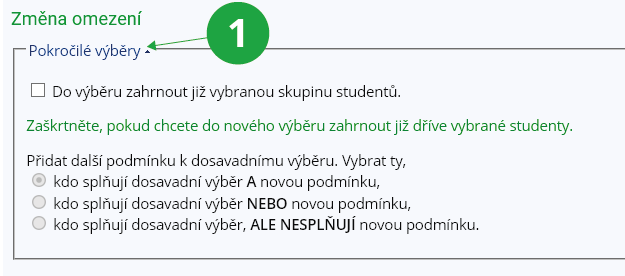
1 Advanced selection options.
If you need to gradually narrow down a specific group of students, select the option to include previously selected students and then add restrictions using the AND operator. This allows you to progressively filter the desired group of students you want to work with.
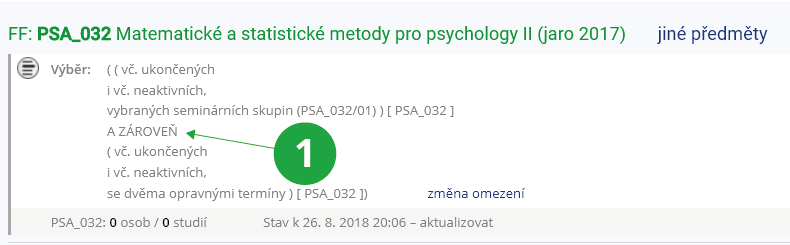
1 Example of step-by-step filtering.
Provided you have failed to find the information you were searching for, you can contact us at  fi
fi municz