- 1.What are ROPOTs?
The ROPOTs (Revision, Opinion Poll and Testing) contain questions and allow students to actively answer. The system typically automatically stores and evaluates the answers.
The preparation of the ROPOT consists of two steps - applications:
- Question Sets – what the ROPOT asks, the questions to be asked
- ROPOT Descriptions – who is allowed to take the test, when and under what conditions, from which question sets the questions are to be used.
- Exercises
- Many questions designed for students to work on outside the classroom (recapitulation, drill, checking understanding of the material, ...). Students can open the practice test at any time and view the correct results after submitting it.
- PC-based test
- A clicker exam that students take in the computer classroom. The test is typically timed and the results are recorded in a notebook (the ability to generate a grade) without displaying the correct answers to the students.
- PC-based test demo
- The mode is used to easily create a sample test on which students can experience what a live PC-based test looks like. It is advisable to include it during the semester with sufficient distance from the actual testing. The results are not saved.
- Text (accompanied by other materials) or opinion poll
- Unscored questions with some accompanying texts – shorter interactive teaching materials (with checking of understanding of the text), surveys, questionnaires. The order of questions and answers is not mixed.
- Scannable test (multiple choice)
- Creating a printable test and then completing it on paper. The results are entered into a notebook after scanning the submitted paper. The scans are also stored in the student's Retrieval Box for review. Please note: the contents of the short answer sheet are entered in full, including the assignment, when uploading to the student's retrieval box.
- Scannable handwritten text and scores
- A very specific mode – the printed assignment with a free space is filled in manually by the student and the teacher manually corrects and enters the points. After scanning, the number of points is entered into a notebook and the corrected paper is available in the Retrieval Box.
- 2.How do the ROPOTs usually work?
First, you need to create a question set and then use the ROPOT description to define the behavior of the ROPOT (when the student can answer, whether they can see the correct answers, etc.). Only the ROPOT description will allow students to answer the questions, a question set alone is not enough.
After creating the ROPOT, you can see how students will see the test. Via
The Information system Teacher [course selection] (ROPOTs and Quizzes) Work with ROPOTenter the Administering ROPOT page and click on "answer questions"under the name of the ROPOT. From the same page, you can also access the students' answers, this time via the "responses provided" link. - 3.How will students see the ROPOT?If you want to try how students will see the ROPOT, try to practice answering it usingThe Information system Teacher [course selection] (ROPOTs and Quizzes) Work with ROPOT Answer questions (under the appropriate ROPOT description) or Fill in a ROPOT form (among the links at the bottom of the page)After submitting the test, you can view how you completed it by clicking on the "view" link. Please note that the link will only appear if you have enabled access to the view in the ROPOT description. This also applies to other settings, such as being able to answer the same form repeatedly or setting up new questions. If you have enabled the answer display, you will see the correct and incorrect answers marked in green and red, the correct solution listed in green, and the number of points scored for each question, if applicable.
- 4.Where can I find responses provided by the students?Student answers can be accessed via Responses application:The Information system Teacher [course selection] (ROPOTs and Quizzes) Work with ROPOT responses provided (under the appropriate answer sheet) or Responses (among the links at the bottom of the page)
The Answers application displays all responses and person answering operations for the selected ROPOT. Students' answers can also be evaluated here (with points or verbal comments).
On the page listing the respondents and their responses you can find all the information about who worked with the ROPOT, when and how. A list of respondents is available, which can be restricted and sorted as required, and batch operations can be performed on the list of respondents and their responses.

1 For each ROPOT you can view the students' answers.
- 5.What is the Answers application for and how do I navigate it?
The Answers application records all the passes and operations during the answering process of all the persons recorded for a particular ROPOT, and displays the students' answers in the course in priority. The application can be launched via:
The Information system Teacher [course selection] (ROPOTs and Quizzes) Work with ROPOT responses provided (under the appropriate answer sheet) or Responses (among the links at the bottom of the page)For the course teacher, the application allows to filter these ROPOT sessions using the options given at the top of the page, to delete sessions, to renew sessions, to force the submission of a pending sessions and last but not least to view the student's answers after submission or at different stages of filling in the ROPOT.
In addition, the application allows you to manually rate the student's answers with points or verbal comments. Answers can also be exported or checked for plagiarism (see Help Are the answers in the ROPOTs also checked?).
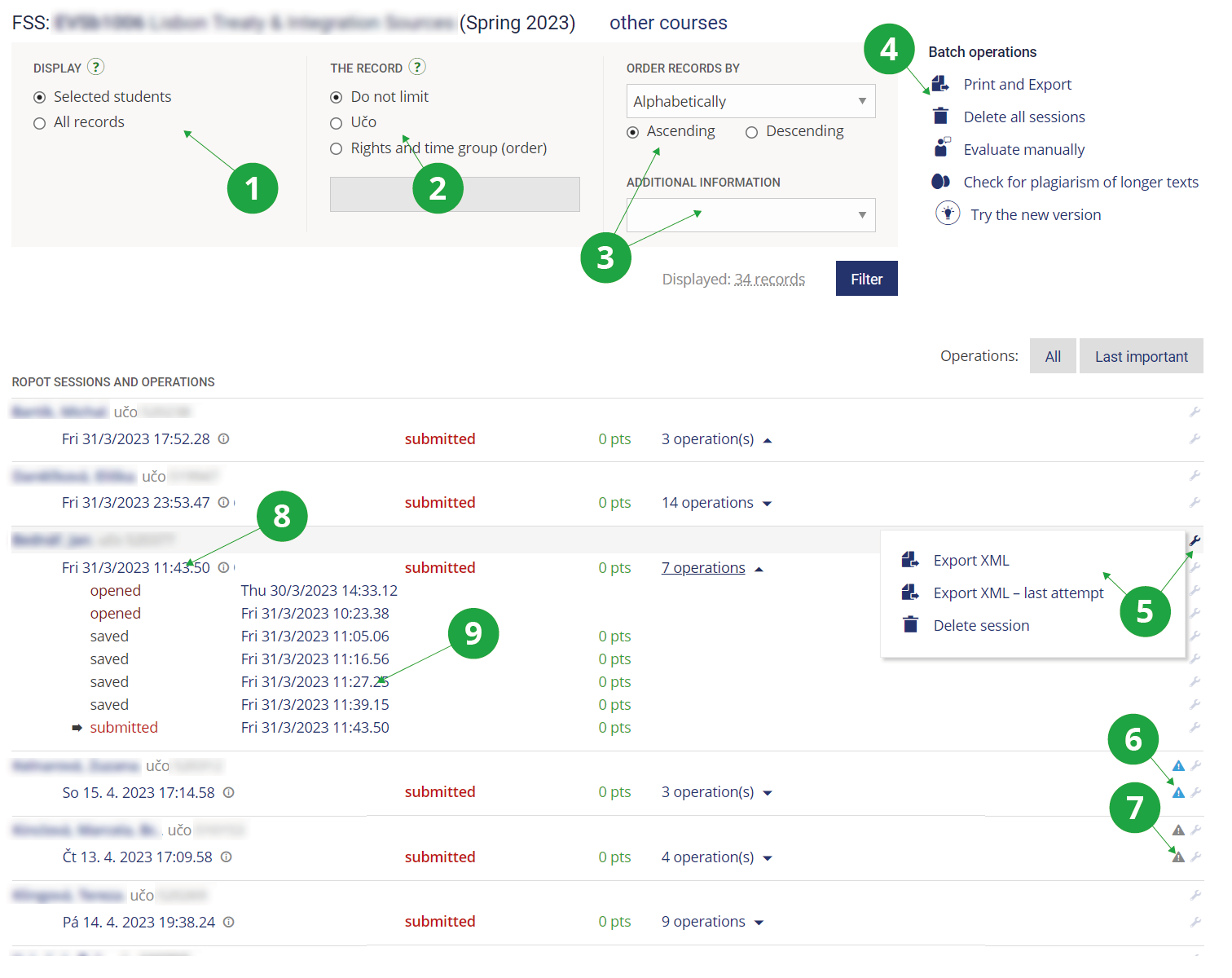
1 The instructor can choose to see only records of a limited group of students (e.g. his/her seminar group, etc.), or all records registered for the selected answer sheet will be displayed.
2 Limit the list by type of records (e.g. all records, matching specified by the teacher, unassigned assignments, application numbers, etc.).
3 Order the records and display additional information (e.g. about the manual assessment entered).
4 Setting of batch operations (only those operations that can be performed on the ROPOT are always displayed).
5 Under the assembly key icon, a menu of options for the pass will be displayed on that row (options vary for the whole record, the whole pass, just a specific operation).
6 Attention to a work in progress pass and the option to end it, for all responders or individually.
7 Warning of a mismatch in the number of operations performed, a passage reopened or a passage not yet answered.
8 Date and time of the last listed operation, typically a submission, also a link to view responses/enter manual evaluation if set.
9 List of matching operations in the sessionas; clicking on the date and time of the operation will display a tour of responses at the time of that operation.
The display of options in the Answers app varies slightly based on, among other things, the mode of the answerer, its settings, or whether the answerer is allowed to have more than one pass. For individual records, sessions or operations, only those options that are relevant at the time, i.e. can be performed, are offered.
The application works with the selection of students that the teacher has chosen when entering the Teacher agenda (active students of the course or perhaps just one seminar group). If the teacher needs to see all records for a given ROPOT, he/she must select "Display: All records". Then he/she will also see test passes of other teachers of the course or unassigned scan assignments.
- ROPOT administrator
- This is the person who sets up the ROPOT and performs other operations on it. Typically, this is the course teacher or a person authorized by the course teacher with access to the Teacher's Notebook. Anyone can be the administrator of a non-course ROPOT.
- The Record
- By a record is meant a user who responds a ROPOT (a respondent, typically student) or a compiled test sheet not linked any to student yet.
- Session
- The user creates the session by clicking on the "Launch a new ROPOT application" button, the system creates the assignment and starts the test. For each session, the date, time, and all operations made during a session are recorded.
- Operations
- The operation means opening, saving, submitting, viewing by respondent and changing the marking of right/wrong answers in the evaluation section by teacher. The system records all operations that are performed on the ROPOT session.
- Session in progress
- If a respondent launches the ROPOT, fills in at least one answer and saves it using “Save and continue” button, and does not use the "Submit" button, this session is marked as a session in progress. It is desirable that the sessions do not remain in progress, as only after submission will the test be evaluated (and the result written in the notebook, if required). A turquoise icon with an exclamation mark indicates a session in progress. An in-progress session can be ended either by the respondent submitting the test or by the teacher changing the save to submit in the session (for a tool to end a work-in-progress session, see the handling key icon – i. e. “Edit session” button).
- Mismatch in number of started sessions, session reopened, session still unanswered
- This is supplementary information, especially for cases where a student reports difficulty working with the answer key. They are notifications of a non-standard number or order of some operations. Mismatch in the number of started sessions highlights situations where there has been a mismatch in the number of times the ROPOT has been opened and submitted or vice versa. Re-opened session highlights a situation where the respondent has already submitted their answers at least once in the sessione, but then returned to the test again by clicking on 'Re-answer' and has not yet made any changes to their answers since then. For the passage with no answers so far, the answerer has made a new assignment but has not filled in any answers.
- Opened
- The date and time of launching the ROPOT session by respondent is recorded accordingly. For a compiled test sheet, it indicates the date and time the compiled test sheet was created (typically a compiled test sheet for scannable exam).
- Saved
- It records the date and time when the respondent used the "Save and Continue" button or when the continuous save occurred automatically.
- Submitted
- The date and time when the respondent clicked on the "Submit" button and the ROPOT session was evaluated, or when the session was automatically submitted at the end of the time limit for taking the test, is recorded
- Viewed
- The date and time at which the respondent viewed their answers is recorded. The ability to view responses and possibly see which ones are correct is set by the ROPOT administrator.
- Correction
- Record the date and time when the teacher made a change of the marking of right/wrong answers in the evaluation section of the answers (for at least one question, the teacher changed which answer was correct and the points were recalculated).
- Last important operation
- It is either opened, saved or submitted. It is marked with a black horizontal arrow in the list of operations next to the session.
- 6.Where are the student answers from the scannable answer sheets?In the applicationThe Information system Teacher [course selection] (ROPOTs and Quizzes) Work with ROPOT Responses provided (under the appropriate ROPOT description) or Responses (among the links at the bottom of the page)also find the responses of students who wrote the tests on scannable answer sheets. In addition, each student's test sheet number information is included. If you also need to see test sheets that could not be linked to a specific student, select "View: All Records".
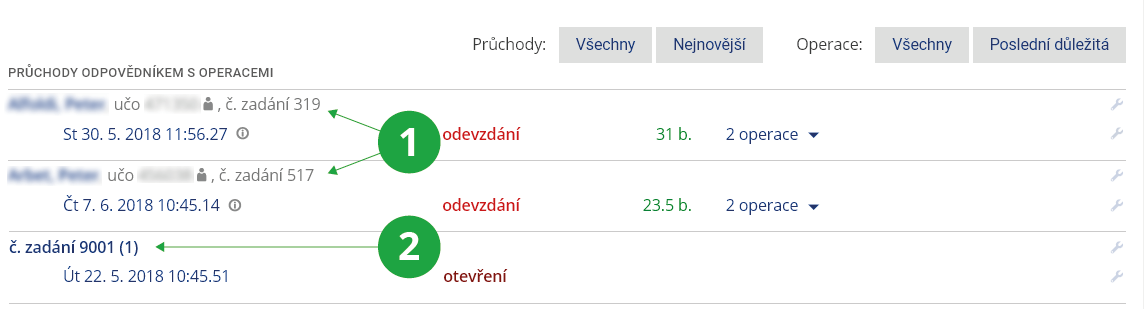
1 Responses from students who wrote the exam with scannable answer sheets, test sheet number is also given.
2 Unlinked scannable test sheets.
The Information system Teacher [course selection] (ROPOTs and Quizzes) Work with ROPOT Browse answer sheetsResponses provided by student are automatically removed five years after the session have been launched.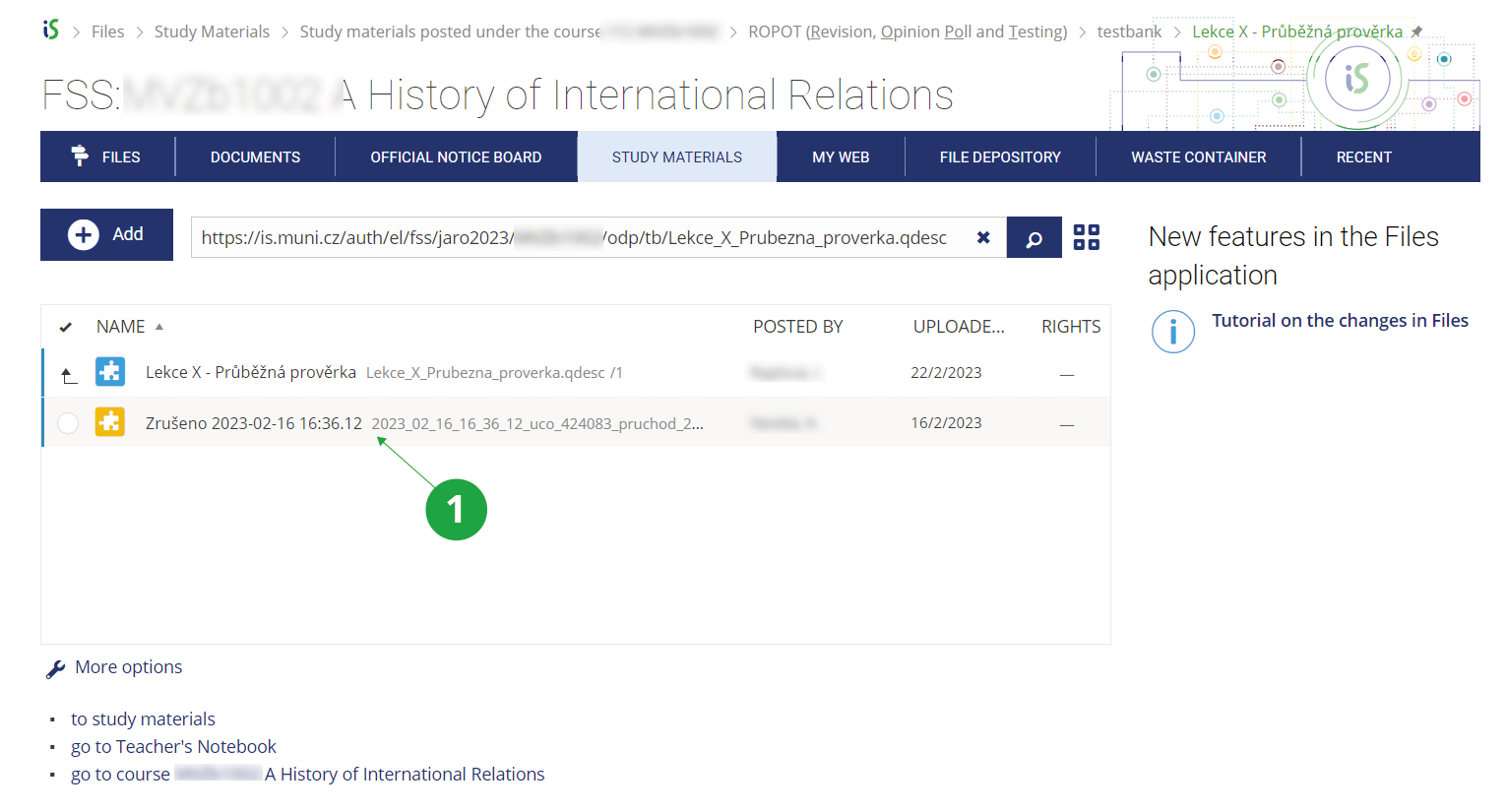
1 The file with the removed responses in the file manager.
- 7.How do I find out the difficulty of the questions in the ROPOTs?
Using the Difficulty level application, you can get a summary of the answers to each question in the ROPOT and see which questions are most difficult for students. You can find the application via
The Information system Teacher [course selection] (ROPOTs and Quizzes) Work with ROPOT Difficulty level (among the links at the bottom of the page)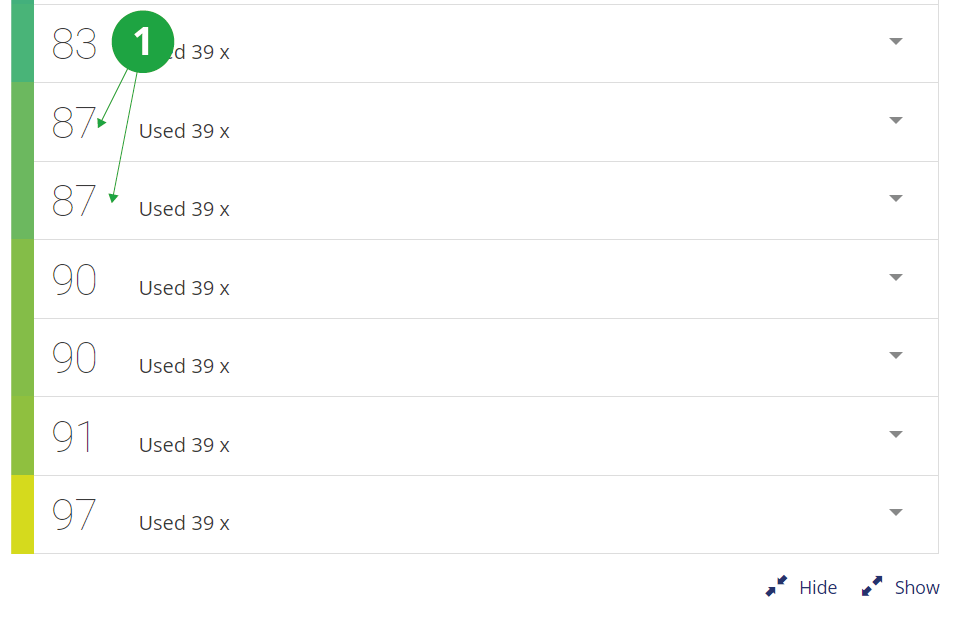
1 Each question has a difficulty coefficient.
A table will be displayed showing the so-called difficulty coefficient. The difficulty factor is the ratio of correct answers to all answers (including unanswered questions). The lower the number, the more students made mistakes.
You can also sort the questions by how they are placed in the set. The calculation of the coefficient may take into account the scoring of the ROPOT. For example, in the case of tests with negative scores for wrong answers, multiple-choice questions will be more comparable.
You can also view the identity of the respondents and see how the selected students answered each question.
1 Set the order of the questions in Difficulty level.
2 Change if you need to take the ROPOT scoring into account when calculating the difficulty factor.
At first glance, you can see the distribution of students' answers to the question. The prevalence of wrong answers may be an impulse to revise the wording of the question, or it may suggest that the material needs to be discussed more with students.
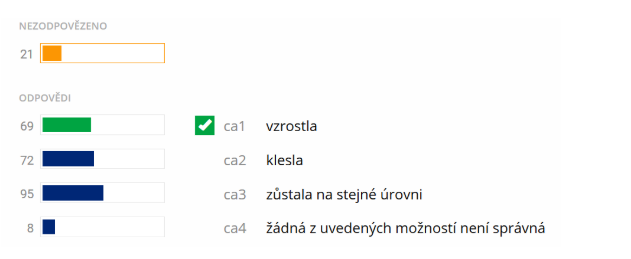
1 Graph of the distribution of student responses.
If the wrong option hasn't fooled anyone, perhaps it is unnecessary in the question or another one can be devised. This is a so-called non-functional distractor.
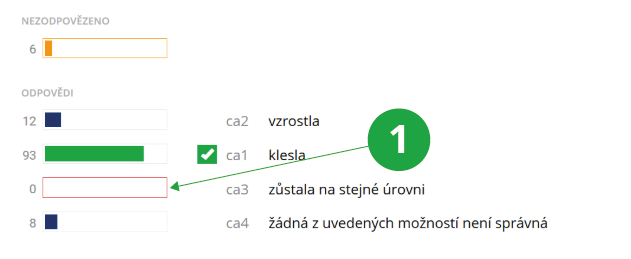
1 Non-functioning distractors are highlighted in the Difficulty level application.
- 8.I would need the student to launch the ROPOT and take the test again
Sometimes it may happen that a student's connection breaks down while answering (e.g. when answering from home). You may also want to change the assignment and ask students to retake the test. In this case, you must first cancel the students' answers via
The Information system Teacher [course selection] (ROPOTs and Quizzes) Work with ROPOT remove answers (under the relevant ROPOT) or Remove answers (among the links at the bottom of the page)You can cancel all responses from all persons or only the responses of an individual. You can cancel responses especially if you have set "no" or "Yes, they should, but it is always the same form (same questions) that should be offered to them." in the section dedicated to repetitive work with the ROPOT in the description of the ROPOT form. If it is a practice ROPOT with the setting "Yes, they should and some other questions should be offered to them next time they work with the ROPOT application.", the student simply launches the ROPOT creating a new session and the problem is solved.
Cancelled answers are not definitively lost. You can restore them using
The Information system Teacher [course selection] (ROPOTs and Quizzes) Work with ROPOT restore (under the appropriate ROPOT) or Restore discarded answers (among the links at the bottom of the page)Also remind students to use the "Save and continue" button. In the event of a power outage or disconnection, it is then possible to return to a partially completed test and complete it.
- 9.I'm trying to work with a ROPOT, but my questions are not updating!After saving the ROPOT description, use the applicationThe Information system Teacher [course selection] (ROPOTs and Quizzes) Work with ROPOT Fill in a ROPOT formfill in the form and submit it for evaluation. This is also how the student works with the ROPOT. Depending on what you have entered in the description, you can answer repeatedly or once, and you can have the same form over and over or new questions each time. A single launching of a blank form (selecting questions and assembling them into a page) is called a ROPOT session. In the applicationThe Information system Teacher [course selection] (ROPOTs and Quizzes) Work with ROPOT Responsesyou can see who was working with the ROPOT.
If the ROPOT description is set to "Should students be allowed to access this ROPOT application repeatedly? Yes, they should, but it is always the same form (same questions) that should be offered to them." you can still see the original session when you select "Work with the question form again" (in the ROPOT application).
If you are changing a question set (editing text, adding a question, ...) and want to see the updated ROPOT, delete your original sessions using the
The Information system Teacher [course selection] (ROPOTs and Quizzes) Work with ROPOT Remove answersIf the ROPOT description is set to " Should students be allowed to access this ROPOT application repeatedly? Yes, they should and some other questions should be offered to them next time they work with the ROPOT application." you don't have to cancel your answers when trying the behaviour of the ROPOT, you can already create new sessions with the current questions. - 10.I want to test students on computers (in a computer lab)
To test students on PCs (typically supervised in computer labs), use the following application:
The test is not accessible on computers prior to the exam start time (thanks to the precise setting of the date and time defining when students can work with the ROPOT).
Tips to support security mechanisms during PC testing:Yes, a PC-based exam can be time-limited in the ROPOT description. Once the time limit expires, responses are saved automatically. This ensures that even responses from students who did not click the "Save" button are not lost.
- Use a unique set of questions stored in a separate question set for each exam date. Shuffle the test questions so each student sees a different order.
- Restrict access to the ROPOT to a specific network segment or lab room (with assistance from LVT). Students will then not be able to view the tasks for a different exam date from home.
- In the ROPOT description, you can specify that a wide colored bar should appear on the left side of the screen upon opening the test.
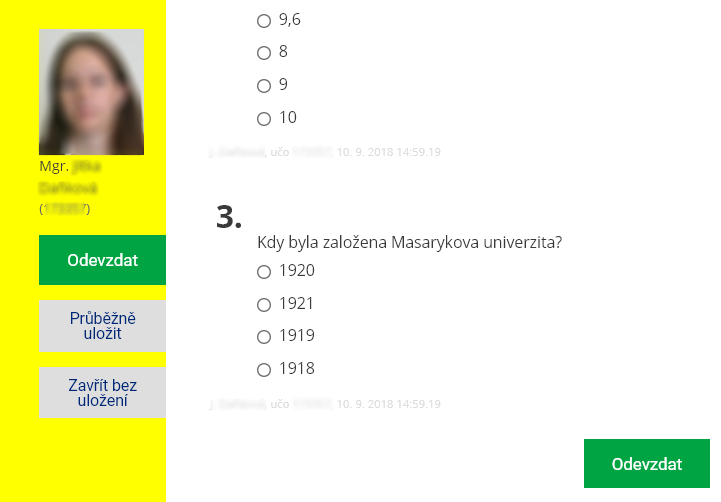
1 Colored bar in the ROPOT as part of security measures.
- You can contact your LVT department to request restricting access to all websites except is.vsfs.cz.
Try asking the computer lab technical support for the lab's network address range (IP addresses) and enter them in the ROPOT description under the "On which computers should the students be allowed to work with the ROPOT application?" section. If you cannot or do not wish to obtain IP addresses, strictly restrict ROPOT access to students enrolled in that specific exam date. In the test description under "Rights and time group", specify that only students registered for the specific exam date may open it. In this case, it is necessary to close student enrollment for the exam date sufficiently in advance. At the beginning of the exam, take attendance and unenroll any absent students from the exam date to prevent them from opening the ROPOT remotely over the internet.
Student responses are automatically cached in the browser memory. This helps prevent data loss during outages so students do not lose their answers. The test is continuously saved.
The system logs all performed operations (time of opening the ROPOT, computer address, selected answers, time of saving, subsequent review, etc.). In case of issues or suspicion of unfair practices, these details can be retrieved.
If a student accidentally submits an attempt for evaluation, they typically cannot return to the test. A possible solution is to delete their attempt using the application:
Information System Teacher [course selection] Work with ROPOT Remove answersand allow them to start the test completely afresh.
- 11.I want to process the collected answers myself – export answers from the ROPOTStudent responses to a particular ROPOT can be exported to different formats and further processed freely. Use the application in the Teacher's NotebookInformation System Teacher [course selection] Work with ROPOT Export answers (among the links at the bottom of the page)Select the ROPOT from which you want to export the answers. In the application, you have the possibility to modify the export properties (form of exported questions and options, answers, sessions, etc.), select the exported file format and encoding. The exported answers can be output to the screen or printed, this option is mainly used to check the exported data. For further processing of the answers, use the export to a text file or formats designed for processing in Excel.
- 12.I want to process the collected answers myself – output to XMLYou can view the students' answers in XML format, which is suitable for further processing by a programmer. You can retrieve them usingInformation System Teacher [course selection] Work with ROPOT XML (among the links at the bottom of the page)Download them to your computer and give them to the programmer. Student responses in the answer sheet can also be exported to a pdf file and then printed. It can only export ROPOTs where questions of type :a (open answer), :r (select one answer), :c (select multiple correct answers) are used. It is available under the linkInformation System Teacher [course selection] Work with ROPOT PDFThe exported pdf contains a list of students who have completed the ROPOT. Student responses always start on a new page. The pdf can be used to archive the answers, for example, for state final exams or admissions.
- 13.What is the meaning of the a_texty folder in the ROPOTs folder in the Study Materials?The a_texty folder is created if you have ROPOTs with free-form answers. Student answers are stored there in text format. IS VŠFS needs these files to search for plagiarism, but they are not important for a normal user.
- 14.Can I make the ROPOT available to persons who do not have access to the IS VŠFS?
Yes, you can. The ROPOT can also be launched in unauthenticated mode, i.e. without logging into the IS VŠFS. Just add the right "anyone on the Internet" in the section "Rights and time group" when editing the description of the ROPOT. Anyone can then launch the ROPOT via the unauthenticated link to the *.qref file.
They must enter a "world address" starting with „https://is.vsfs.cz/“.
With unauthenticated access, the identity of the respondent cannot be uniquely determined because individual accesses are identified only by an access number. This number, which is displayed in the list of answers instead of the name and username, is stored in the browser by means of cookies and allows, for example, to retake the test from the same computer and account and to view the results of the previous session. For unauthenticated access it is therefore necessary to have cookies enabled in the browser. Access via an unauthenticated link from another browser/computer means a completely new launch of the ROPOT.
Points from unauthenticated accesses cannot be recorded in the notebook.
ROPOTs with non-authenticated access may be useful for various surveys and polls (e.g. during open days).
- 15.How do I find out the results of an unauthenticated ROPOT?The statistics of the scores and the number of completed tests can be found in the usual way by selectingInformation System Teacher [course selection] Work with ROPOT Responsesor through the Difficulty level if it is prepared within the course (which is not necessary, it can be placed outside the Study Materials, e.g. in the Document Server).
- 16.Can the ROPOTs be used for admissions?Yes. In the description of the ROPOT, you can assign the right to work with the ROPOT using Rights and time group setting to applicants for study (i.e. persons who have submitted an application for study) or to sit entrance examination, where you specify a specific date. These persons will be identified by an application number.
- 17.How do I get a simple list of respondents with scores without using notebooks?The IS VŠFS allows you to easily obtain a list of persons (who have passed the test) with the number of points achieved and the time of completing the test using the "simple export" function. The function can be accessed usingInformation System Teacher [course selection] Work with ROPOT Responses Print and Export Simple exportHere you can choose whether you just want to print the list to the screen or download it in Excel and Word format. The list contains all the people who have worked with the ROPOT, including the respondents authenticated via application number and records of unauthenticated accesses (instead of the name, the record is indicated by the access number). Simple export is useful for obtaining scores from unauthenticated accesses to the ROPOT, or when using the ROPOT outside of a specific course.
- 18.What is the purpose of exporting :r and :c questions for Drill application?Use the "Export Questions for Drill" feature if you want to allow students to practice the material using Drill application. The export can be found in the application:Information System Teacher [course selection] Work with ROPOT Export Questions for DrillUse the form provided to find the question set you want to export and confirm with the "Use" button. The export application allows you to export the questions including all options in CSV format, which you then use as a data file for importing into the drill. Exporting for drill is only suitable for :r and :c questions where students do not need to know the exact answer but are able to select it from the options provided. We recommend that you use the drill export only for questions that contain some factual knowledge. You can learn more about drill application in the HelpInformation System Help Drill – spaced repetitionand in the question: How do I import data from the answer sheet into the drill?
- 19.How do I transfer answer sheets to the current semester?For the transfer of ROPOTs, as well as other materials in the course, there is an application for copying materials:Information System Teacher [course selection] Sharing and copying study materials Copy Study MaterialsHere, select the course and semester from which you want to copy the ROPOTs and any other files and click on "Copy". In addition to actually copying the materials, this application also sets access rights and access rights in the ROPOTs for the target semester.
Provided you have failed to find the information you were searching for, you can contact us at  fi
fi municz